Which Mighty do you have?
Choose your device to see its apps, tips and how-to videos.

Get started
Set up your Mighty
From box to music, step by step. Each step has a heads-up for the spot where people most often get stuck.
-
Step 1: Charge it
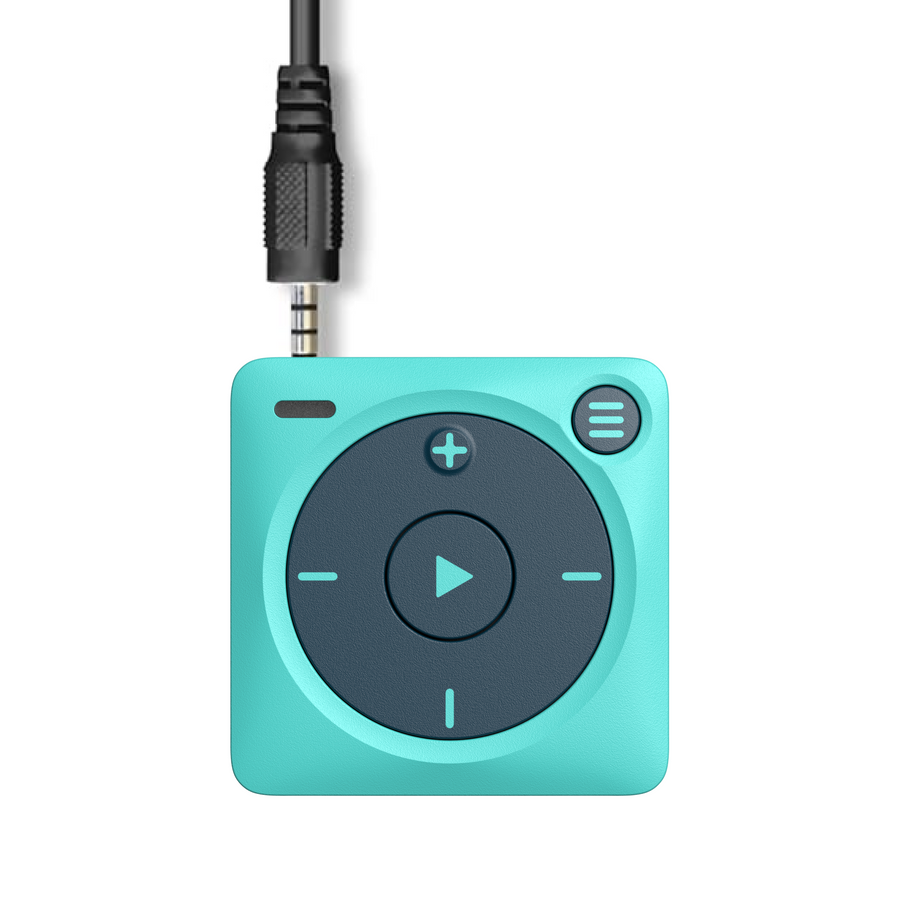
Plug the Mighty cable into Mighty's headphone port and into a USB wall adapter (5V, 0.5–1A) or a computer that's switched on. The light blinks white while it charges and turns solid white when it's full.
Heads-up
Only the Mighty cable charges Mighty. Its plug has three black bands (a TRRS plug); regular headphone or audio cables won't work. Phone chargers and fast chargers won't either. Push both ends all the way in, and if Mighty sat unused for a while, give it some time on the charger before you turn it on.
Lost your cable? Get a Mighty charging cable.
-
Step 2: Get the Mighty app
Scan the code for your phone, or search Mighty Audio in the App Store or Google Play. Open the app and sign in or create your Mighty account.
Heads-up
Already have the app? Make sure it's up to date before you connect.
- Turn Mighty on and plug it into a charger. Make sure it's on WiFi.
- Open the Mighty app and connect to your Mighty. If an update is ready, the app tells you on its own.
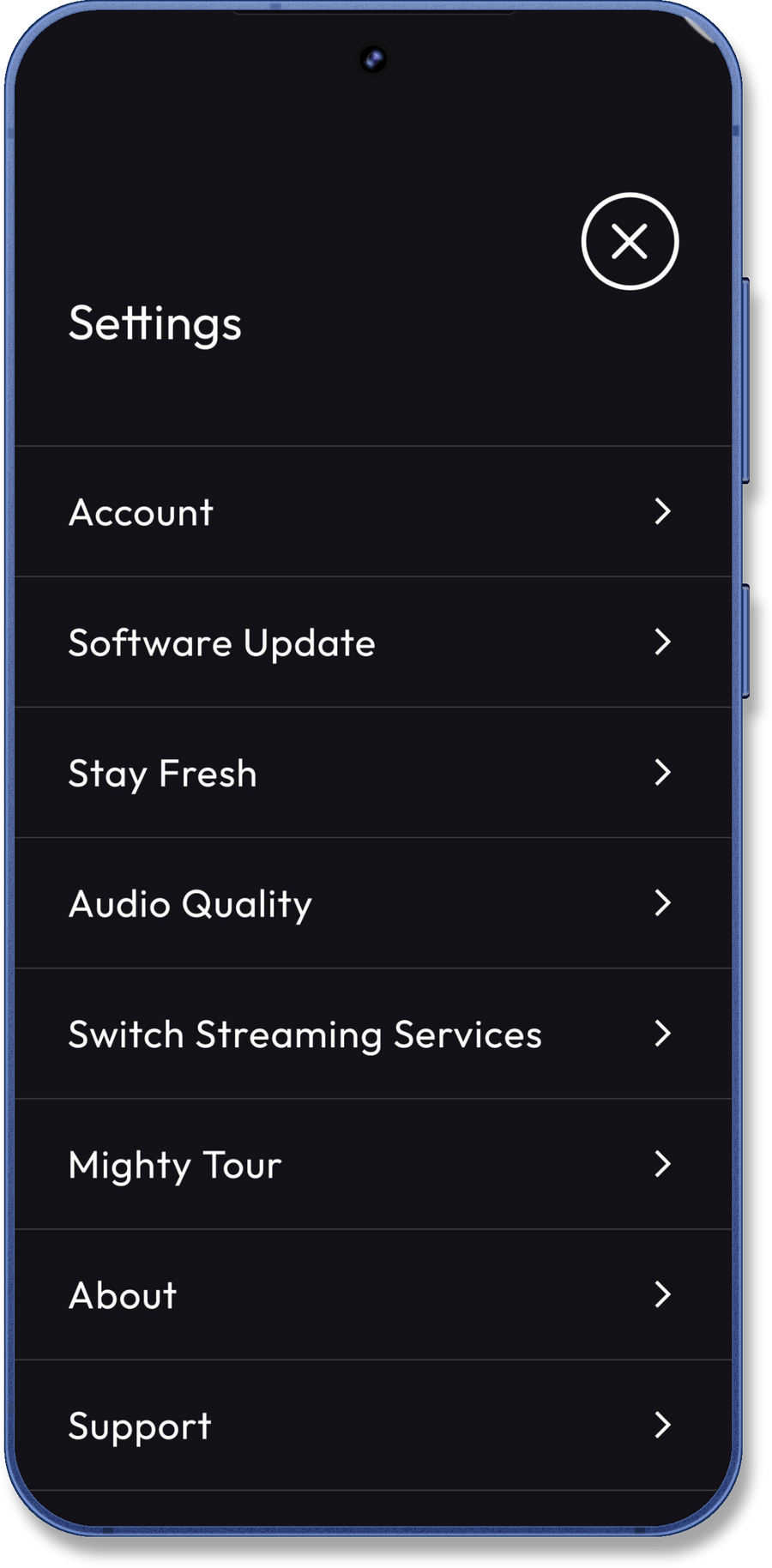
- To check yourself, tap the menu (☰), then Software Update.
- Leave Mighty on the charger and don't press its buttons until it restarts.
The update only starts while Mighty is charging.
-
Step 3: Connect Mighty in the app
Turn Mighty on: hold Play for 1–3 seconds, until the light turns green. In the app, tap the Mighty button (the first one at the top, glowing green in the picture) and follow the steps until you see the green check.
Heads-up
Don't pair Mighty in your phone's Bluetooth settings. If your phone says “Mighty3_#### is not supported”, that's why. Mighty only connects through the app.
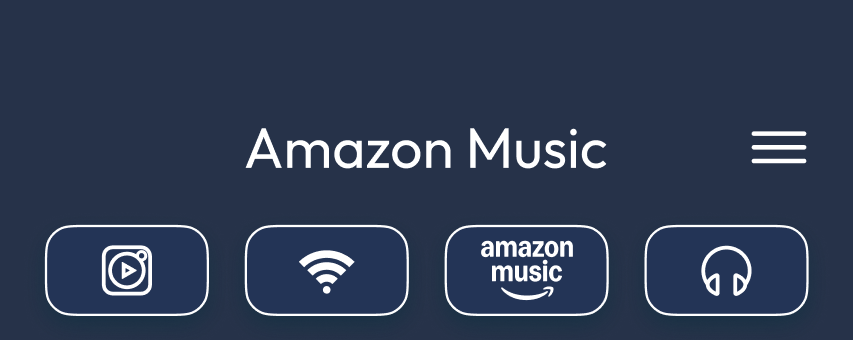 Mighty is connected
Mighty3_Jsti

-
Step 4: Connect WiFi and Amazon Music
Keep Mighty plugged in and near your router. In the app, go to Connections, tap the WiFi icon and join your network. Then sign in to Amazon Music in the app with your Amazon account email (or phone number) and password.
Heads-up
Mighty joins WiFi on its own, not through your phone. Networks that open a sign-in page (hotels, schools, some offices) won't work. Use your home WiFi or your phone's hotspot.
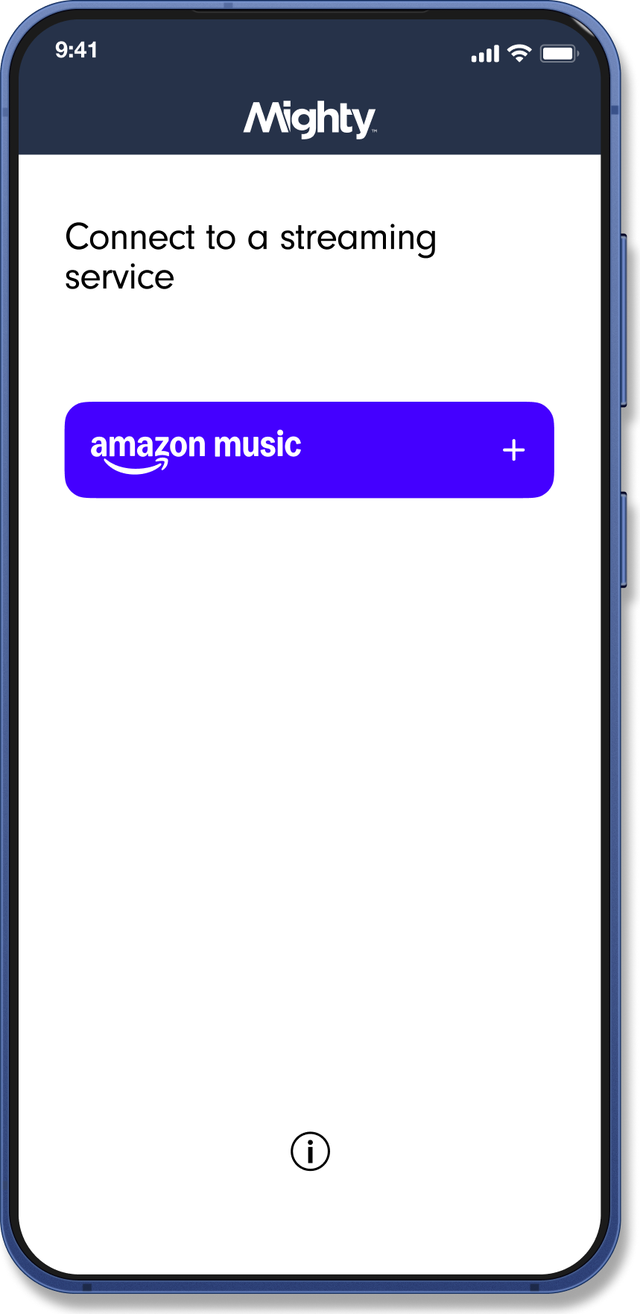
Before your first sync
- Amazon Music Unlimited syncs any playlist you made or follow. Prime syncs a limited set of Amazon's All Access playlists.
- Mighty syncs playlists, not albums. Add albums or songs to a playlist first.
-
Step 5: Sync your first playlist
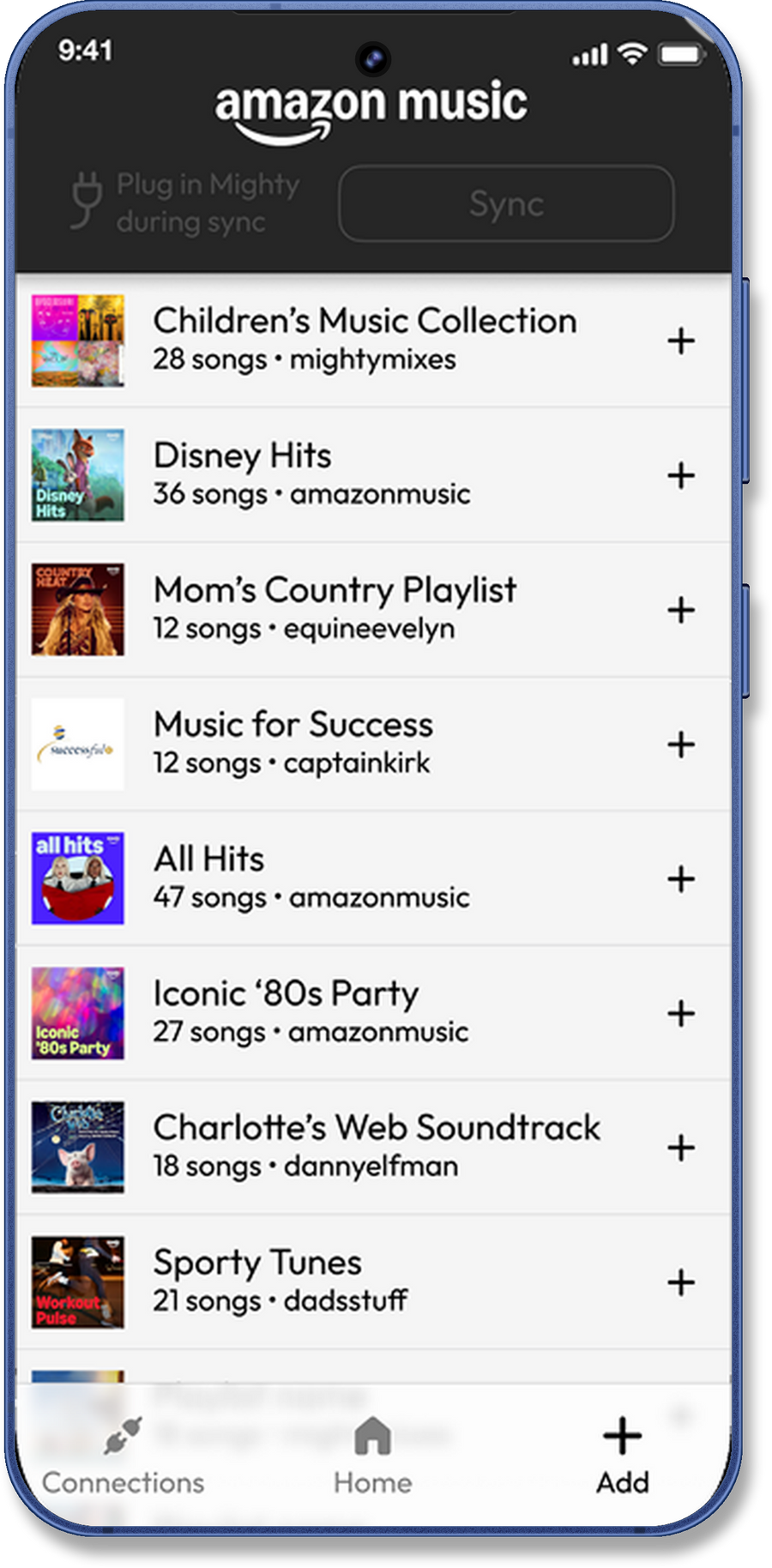
In the app, open the playlist you want, tap +, then tap Add playlist. Start with one playlist of about 20 songs.
Heads-up
Many people find their first sync takes a very long time. Give it time. The light blinks fast green while Mighty downloads, and that's normal. Leave it plugged in and don't press its buttons.
When the light stops, wait 10–20 seconds, swipe down in the app to refresh, then plug in your headphones and press Play.
-
Step 6: Add Bluetooth headphones (optional)
With Mighty on and connected in the app, put your headphones in pairing mode. On the app's Connections screen, swipe down to search, then tap + next to your Bluetooth device. You only need to do this once.
Heads-up
Disconnect the headphones from your phone first. They pair with Mighty itself, not with your phone.
Headphones not showing up? Close the Mighty app completely and open it again, then swipe down on Connections to search again. Restarting the app often fixes Bluetooth.


Last thing: turn on Stay Fresh (menu ☰ > Stay Fresh). Mighty refreshes your playlists overnight and does its 30-day check-in for you, so artists get credit for every play. Then put your phone down and go.
Something not working?
Tap a topic for a quick fix and answers to common problems.
Quick tip: Use the Mighty cable (its plug has three black bands) with a USB wall adapter (5V, 0.5–1A) or a computer. Phones, fast chargers and regular audio cables won’t charge it.
Charging your Mighty
- Plug the Mighty cable into Mighty’s headphone port and into a USB wall adapter (5V, 0.5–1A) or a computer that’s switched on.
- Push both ends of the cable all the way in.
- The light blinks white while it charges and turns solid white when it’s full. While Mighty downloads music or an update, the light blinks fast green instead, but it’s still charging.
Troubleshooting power
-
What do the lights mean?
- Blinking white: charging
- Solid white: fully charged
- Fast blinking green: downloading music or an update over WiFi. If it’s plugged in, it’s still charging; the white charging light comes back when the download finishes.
- Solid green: starting up
- Blinking green: on and ready
- Blinking blue: waiting to pair (press Play)
- Blinking orange: low battery
- Solid orange: powering off
-
My Mighty won’t turn on or charge
- Use the Mighty cable with a USB wall adapter (5V, 0.5–1A) or a computer that’s switched on. Phones, fast chargers and unpowered hubs won’t charge it.
- Check the plug: the Mighty cable has three black bands (TRRS). Regular headphone or audio cables won’t charge Mighty, and other cables can damage it.
- Push both ends of the cable all the way in; a loose connection is the most common cause.
- If the battery was completely empty, leave it charging for a while before turning it on.
- Hold Play for 1–3 seconds, until the light turns green. Starting up can take up to 30 seconds.
- Try a different adapter or USB port.
Still no light? Choose “Warranty claim” on our Support page and we’ll help.
Quick tip: Mighty connects through the Mighty app, never through your phone’s Bluetooth settings.
Connecting Mighty to the app
- Charge Mighty, then turn it on: hold Play for 1–3 seconds, until the light turns green.
- Open the Mighty app and sign in.
- Add your Mighty in the app and follow the steps until you see the green check.
Troubleshooting connecting
-
My phone says “Mighty3_#### is not supported”
That message means Mighty was paired from your phone’s Bluetooth settings. Mighty doesn’t pair like a regular Bluetooth speaker.
Open the Mighty app and add your Mighty there instead.
-
The app can’t find my Mighty
- Make sure Mighty is charged and on. The light blinks green when it’s on and ready.
- Close the app, reopen it and try again.
- Restart Mighty: hold Play for about 15 seconds until the light turns off and stays off, then hold Play for 1–3 seconds, until the light turns green.
Quick tip: Mighty joins WiFi on its own, without your phone. Use your home network or your phone’s hotspot. Networks that open a sign-in page (hotels, schools, some offices) won’t work.
Connecting to WiFi
- Plug Mighty in and move it close to your router.
- In the app, go to Connections and tap the WiFi icon.
- Choose your network and enter the password carefully.
Troubleshooting WiFi
-
My network has a sign-in page
WiFi that opens a sign-in page (hotels, schools, some offices) won’t work, because there’s no way to complete that sign-in from Mighty. Connect Mighty to your phone’s hotspot instead.
-
It still won’t connect
- Keep Mighty plugged in and close to your router.
- Close the app, reopen it and try again.
- Enter the WiFi password carefully.
- Restart Mighty: hold Play for about 15 seconds until the light turns off and stays off, then hold Play for 1–3 seconds until it comes back on. Reconnect it in the app afterward.
Quick tip: Tip: for the quickest first sync, keep Mighty plugged in and close to your WiFi router, and start with a playlist of about 20 songs.
Syncing playlists
- In the Mighty app, open the playlist you want.
- Tap + to add it, then tap “Add playlist”.
- It’s best to leave Mighty on its charger until the light stops blinking green.
Troubleshooting sync
-
Are you on Amazon Music Unlimited?
Your own playlists need Amazon Music Unlimited.
With Amazon Prime, only a limited number of Amazon-made “All Access” playlists can be downloaded to Mighty. Playlists you create yourself aren’t available for Prime members at this time.
-
Stay close to your WiFi router
Mighty downloads your music over WiFi. Move it close to your router while it syncs.
WiFi that opens a sign-in page (hotels, schools, some offices) won’t work. Your phone’s hotspot will.
-
Is Mighty charged and plugged in?
We recommend keeping Mighty plugged in for the whole sync, and not pressing its buttons while the light blinks green.
-
First sync? Try about 20 songs
A first playlist of about 20 songs syncs faster, so you’re listening sooner. It’s a suggestion, not a limit.
After that, syncing one playlist at a time (100 songs or fewer) works best. Syncing can take a while, especially the first time. As long as the light blinks fast green, it’s working.
-
The playlist synced, but it isn’t on my Mighty
- After a sync, wait 10–20 seconds for Mighty to reconnect, then swipe down on the Home screen to refresh.
- Only playlists you created or follow show in the app. Add albums to a playlist first.
- To check, plug in headphones and press Play.
-
I can’t find an album or a song
Mighty syncs playlists. Add the album or songs to a playlist you created or follow in Amazon Music, then swipe down in the app to refresh.
Quick tip: Make sure Mighty is on and connected to the app. Then disconnect your headphones from your phone: they pair with Mighty itself, not with your phone. Still not showing up? Close the Mighty app and open it again.
Connecting Bluetooth headphones
- Turn Mighty on and connect it in the app (green check).
- Disconnect the headphones from your phone or any other device.
- Put the headphones in pairing mode.
- On the app’s Connections screen, swipe down to search.
- Tap + next to your Bluetooth device. You only need to pair once.
Troubleshooting headphones
-
My headphones don’t show up
- Make sure your Mighty is on and connected in the app (green check).
- Disconnect the headphones from your phone or any other device, then put them back in pairing mode.
- Close the Mighty app completely and open it again. Restarting the app often fixes Bluetooth.
- On the Connections screen, swipe down to search again, then tap + next to your Bluetooth device.
-
My wired headphones stopped working
- Push the plug all the way into the headphone port.
- If Bluetooth headphones or a speaker were connected, Mighty may still be sending sound there. Turn them off, or remove them from Connections in the app (swipe left, tap the trash icon).
- Try another pair of headphones to rule out the cable.
- Restart Mighty: hold Play for about 15 seconds until the light turns off and stays off, then hold Play for 1–3 seconds until it comes back on. Reconnect it in the app afterward.
Quick tip: Turn on Stay Fresh and Mighty refreshes your playlists every night and does the 30-day check-in for you. It needs to be within range of the WiFi network it was set up with.
Turning on Stay Fresh
- Open the menu (☰) on the Home screen and tap Stay Fresh.
- Choose what to keep fresh: playlists, podcasts or both.
- Pick a time when Mighty is usually charging and within range of its WiFi, then tap Save.

Troubleshooting Stay Fresh
-
My playlists didn’t refresh
At the time you picked, Mighty must be able to see and connect to the WiFi network it was set up with. Leave it on its charger, in range of that network.
Added songs to a playlist that’s already on Mighty? Stay Fresh picks them up overnight, or refresh it yourself in the app.
-
Why check in every 30 days?
Mighty reconnects at least every 30 days so artists get credit for every play. Stay Fresh does it overnight. Without it, open the app and reconnect at least every 30 days.
Quick tip: When an update is ready, the app tells you automatically as soon as Mighty connects. Mighty needs WiFi to get the update and must be on its charger for it to start.
Updating your Mighty
- Connect your Mighty in the app. If an update is available, the app tells you.
- To check yourself, open the menu (☰) and tap Software Update.
- Make sure Mighty is connected to WiFi and plugged into a charger. The update starts once it’s charging.
- Don’t press its buttons until it restarts.
More about updates
-
The update is stuck or keeps asking
- Make sure Mighty is connected to WiFi and plugged into a charger. The update only starts while it’s charging.
- Don’t press its buttons while the light blinks fast green.
- Still stuck? Restart Mighty (see Restart or reset), reconnect it in the app, then open the menu (☰) and tap Software Update to try again.
If it still won’t finish, contact us and tell us which step it stops at.
-
I have more than one Mighty
Connect and update each one.
-
How do I update the app?
App updates come through the App Store or Google Play.
Quick tip: Try a restart first. It fixes most hiccups and keeps your playlists. Afterward, reconnect Mighty in the app.
Restarting your Mighty
- If Mighty seems unresponsive, press and hold Play for about 15 seconds, until the light turns off and stays off. Then let go.
- Turn it back on: press and hold Play for 1–3 seconds, until the light turns green.
- Open the app and reconnect Mighty so it can play your music again.
Still not right?
-
A restart didn’t help: factory reset
A factory reset clears your playlists and Bluetooth pairings.
- In the app, open the menu (☰), tap Support, then Factory Reset.
- When it’s done, turn Mighty back on and set it up again in the app.